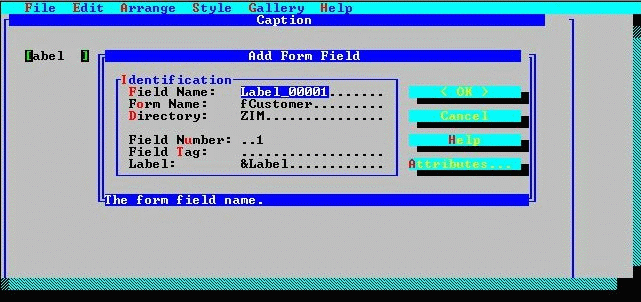
Start by adding the form field objects for the customer's first name. You need a label and an entry field.
If You Don't Have A Mouse. . . Position the pointer, using the direction keys, at the approximate location in the painting window where you wish the label to appear and press F7.
Notice that the label has selection handles at its corners. These special characters indicate that the object is currently selected. Certain Painter operations affect objects only when they are selected. You see more about selected objects a little later in this exercise. At the moment, the label reads "Label".
Painting a label (the Add Form Field dialog).
&First Name:
The ampersand (&) indicates that the letter that follows is to be displayed highlighted (or underlined on Windows) and is to act as an accelerator for the object.
**
Figure 3-5 Changing the label