Now you need an entry form field to hold the customer's first name. You use the same basic procedure to add an entry form field as you did to add the label form field.
If You Don't Have A Mouse . . . Position the pointer, using the direction keys, at the approximate location where you wish the entry field to appear and press F7.
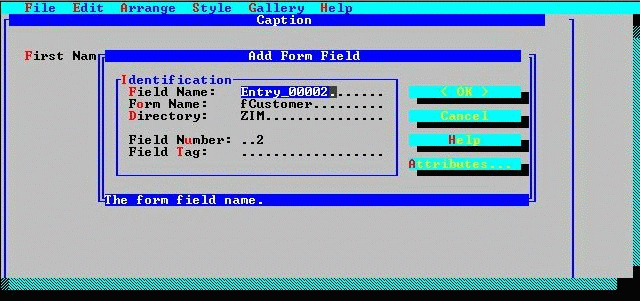
An entry field appears in the painting window and the Add Form Field dialog box appears.
Painting an entry field (the Add Form Field dialog).
At the Add form Field dialog, identify the form field by specifying a name, a field number, and a field tag. (The form and directory names correspond to the names you give when entering the Screen Painter session.) Default values are provided, but assume that you want to give this field the name FirstName.
Changing the field's name has no effect on its screen image.