Adding and Formatting an Option Box
Add a salutation option box in the same manner as you added the other form field objects.
- If necessary, move the current fields down to make room for the salutation option box.
- Select the Option Box menu item from the Gallery menu.
- Position the mouse cursor, and click the mouse button to add the box. An option box appears in the painting window; the Add Form Field dialog box appears.
If You Don't Have A Mouse . . . Position the pointer using the direction keys and press F7 to add the Option Box.
- In the dialog box, change the field name to Salutation and the label to &Salutation.
- Select the OK button, or press Enter to accept the change.
- Position the mouse cursor over the option box, and double-click the mouse button. The Edit Option Box dialog box opens.
If You Don't Have A Mouse . . . Position the pointer over the option box field using the direction keys and press F8.
- In the dialog box, change the Data Value Length to 4 so that the box can assume any of the values that can be assigned to it (i.e. Mr., Mrs., Miss, Ms., Dr.).
- Select the OK button, or press Enter to accept the change.
- Position the mouse cursor over the resize handle on the right-hand side of the option box.
- Press and hold the left mouse button, and drag the handle until the option box is a desirable width. Release the mouse button.
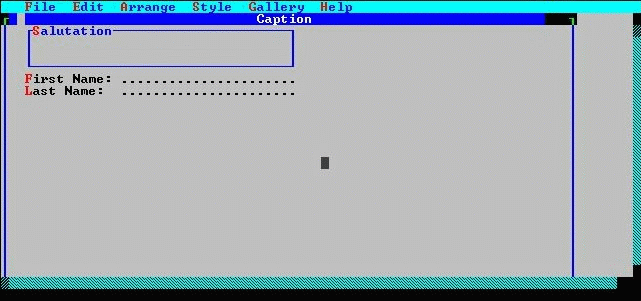
The painting window after the option button box has been added and formatted.