Adding and Positioning Option Buttons
Now that the option box is established, you can add and position option buttons within it. To add the radio-style buttons indicated in the sketch, use the standard procedure.
- Select the Radio Button item in the Gallery menu.
- Position the mouse cursor, and click the mouse button to add the radio button. A radio button appears in the painting window; the Add Form Field dialog box appears.
If You Don't Have A Mouse . . . Position the pointer using the direction keys and press F7 to add the radio button.
- In the dialog box, change the field name to Sal1 and the label to &None.
- Select the OK button, or press Enter to accept the change.
- Repeat steps 38 through 41 or use the duplicate feature to add the remaining radio buttons. Name them Sal2 through Sal5, and label them &Mr., M&rs., M&iss, and M&s., respectively. Increase the width of the option box if necessary.
- Space and align the buttons.
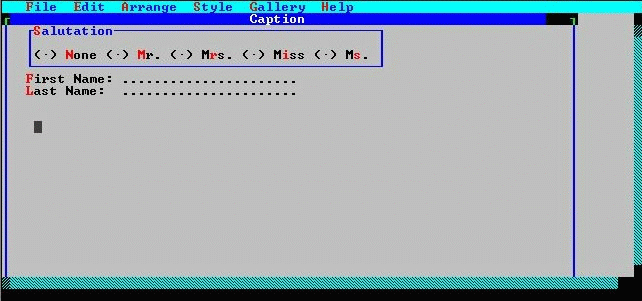
The painting window after the radio buttons have been added and positioned.
The built-in behavior of option buttons and option boxes dictates that only one of the buttons in the box can be "on" at any one time, and that the box takes its value from the button that is on. Assignment of a value to the option box can cause the "on" button to change (if the new value is different from the current value).
To assign "on" values, you must edit the attributes on the buttons.
- Position the mouse cursor over each button in turn, and double-click the mouse button. An Edit Option Box Button dialog box opens.
- If You Don't Have A Mouse . . . Position the pointer over each button in turn (using the direction keys) and press F8.
- In the dialog box, either leave the On Value blank, or change it to "Mr.", "Mrs.", "Miss", and "Ms.", as appropriate. Notice that the Data Value Length is already set to 4 to match the Data Value Length of the option box.
- Select the OK button, or press Enter to accept the change.