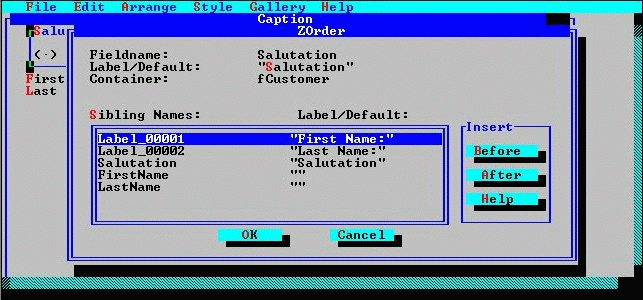
The Z-order menu item on the Arrange menu provides a dialog box that displays the Z-order of selected items relative to their siblings (the top to bottom order of objects in case of overlap). The default tab order of a set of sibling objects is equivalent to their Z-order.
The Z-order dialog shows parent-child relationships, Z-order, and the default tab order.
Objects are added sequentially to the Z-order. Currently, therefore, the option button box comes after the entry and label fields in the default tab order. It should come first.
To change an object's Z-order, choose the Z-ORDER item from the ARRANGE menu. Select the widget in the list box that should precede or follow the selected widget and choose the appropriate action button. The last item in the list box is the top most item visually.
The change in the Z-order dialog has no effect on the images in the painting window because this change affects only the Z-order and default tab order.