To accommodate the customer's last name, you need two fields similar to those created for the first name. You could repeat the process that you just used, but a quicker method is available: the duplicate operation.
To duplicate objects, you must first select the objects to be duplicated. The entry field is currently selected. The label field can be selected as well by clicking it while depressing the Shift key. Now both the label field and the entry field are selected. One way to duplicate selected objects is to use the Alt+D key combination.
If You Don't Have A Mouse . . . To select the second field, position the pointer over the second field using the direction keys. Press the sequence of characters for Shift (as defined in ZIMTCAP). Then press F7.
Note:
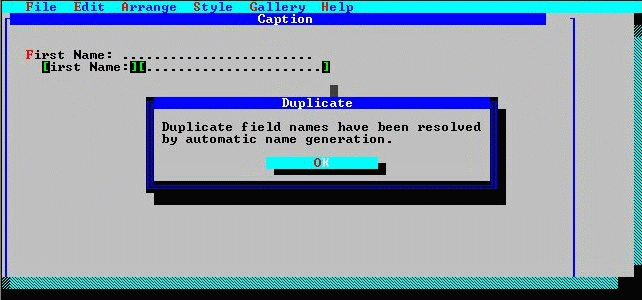
Because two fields cannot have the same identity, the Screen Painter creates a unique name for the new entry field and informs you of its action.
Duplicated fields are automatically assigned unique names.
To change the label and assign a name of your choice to the entry field, you need to edit the field attributes.
An "edit" dialog box opens for each selected field in.
&Last Name: