Naming and Saving the Window
Now might be a good time to save the work completed so far. Zim won't let you save a window unless you name it, so first you'll have to name the window that displays the customer form.
- Position the mouse cursor over the window caption, and click the left mouse button to select the window.
- With the mouse cursor still positioned over the window caption, double-click to open the Edit Window dialog.
If You Don't Have A Mouse . . . Position the pointer over the window caption using the direction keys. Press F7 to select the window. With the pointer still positioned over the window caption, press F8.
- In the dialog, change the Window Name to wCustomer. Change the Caption Text to "Customer Information.
- Select the OK button, or press Enter to accept the change. The new label appears in the caption of the painting window.
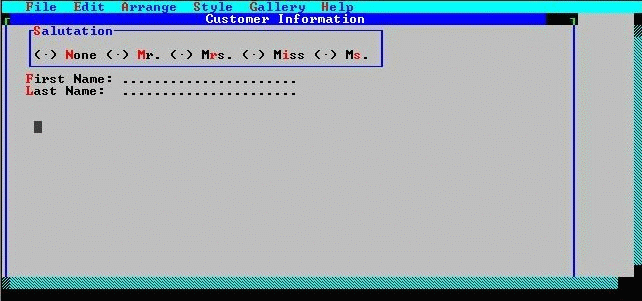
The window has been renamed.
- To save all the changes made so far, select FILE from the menu bar, then select SAVE from the drop-down menu. A Save dialog box pops up, showing the objects that have changed since the last save (or the start of the session). In this case, both the window and form have changed.
- Select the OK button, or press Enter to save all changes.
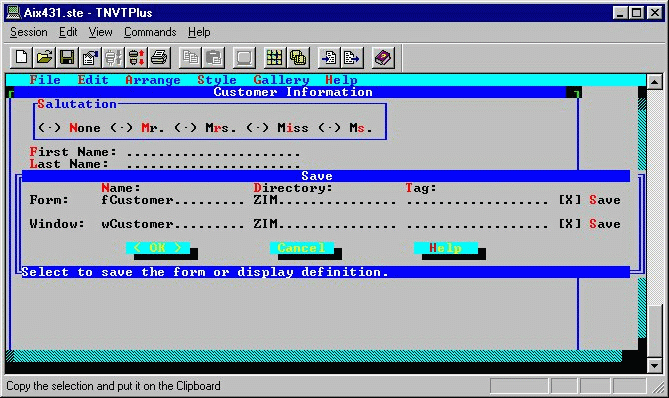
The Save dialog.